Any Questions?
Homepage
What’s on the Homepage?
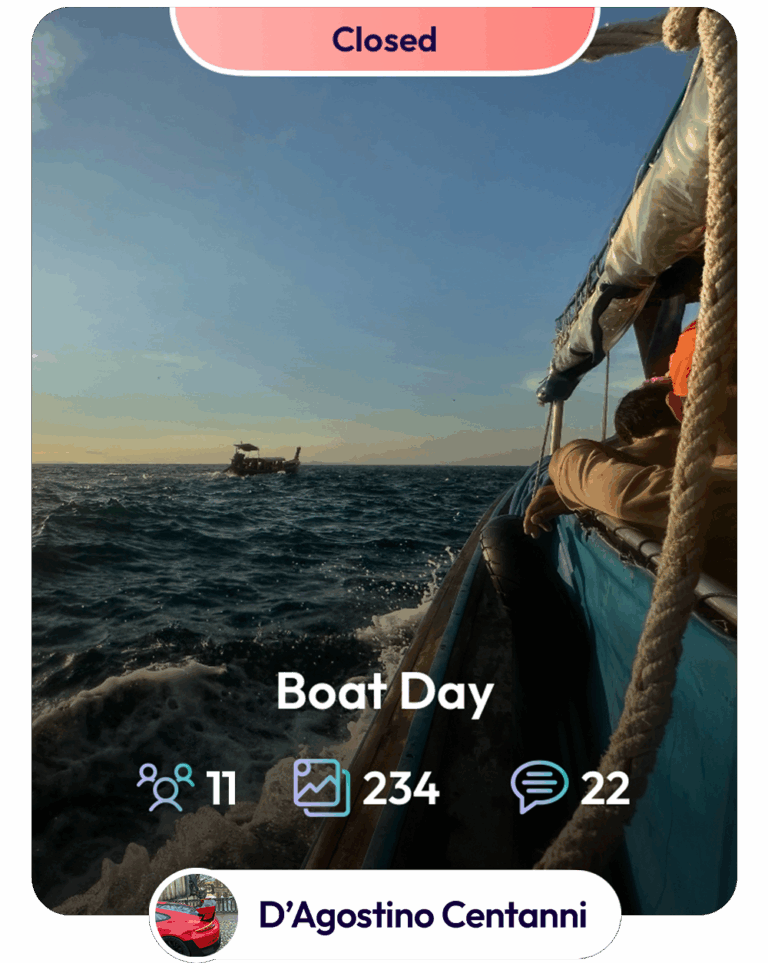
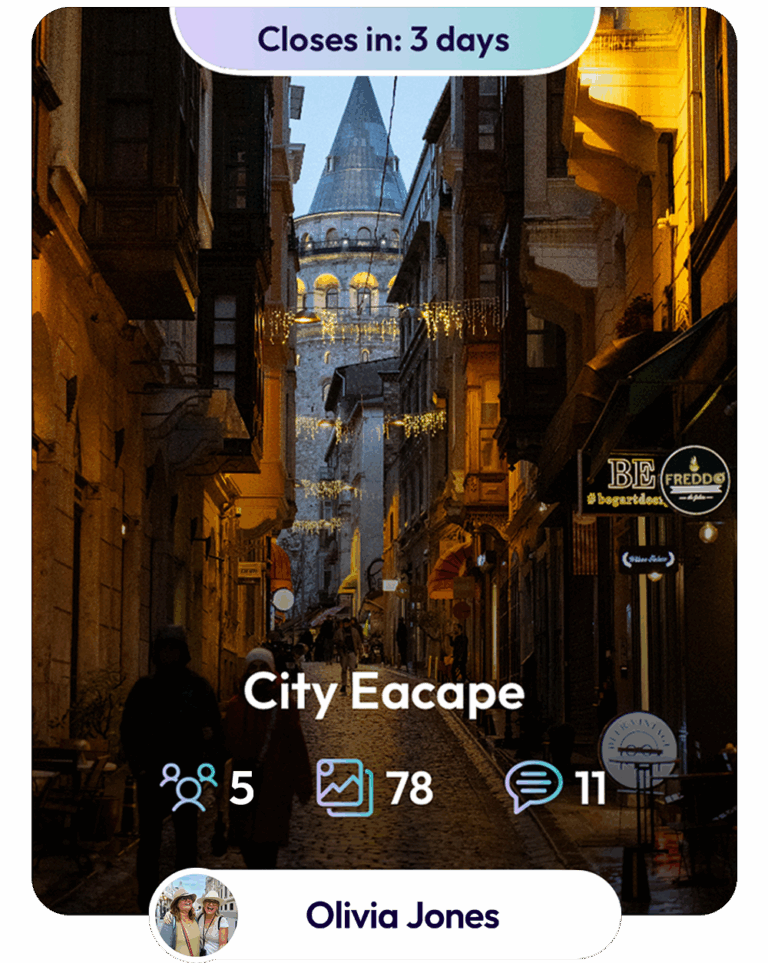
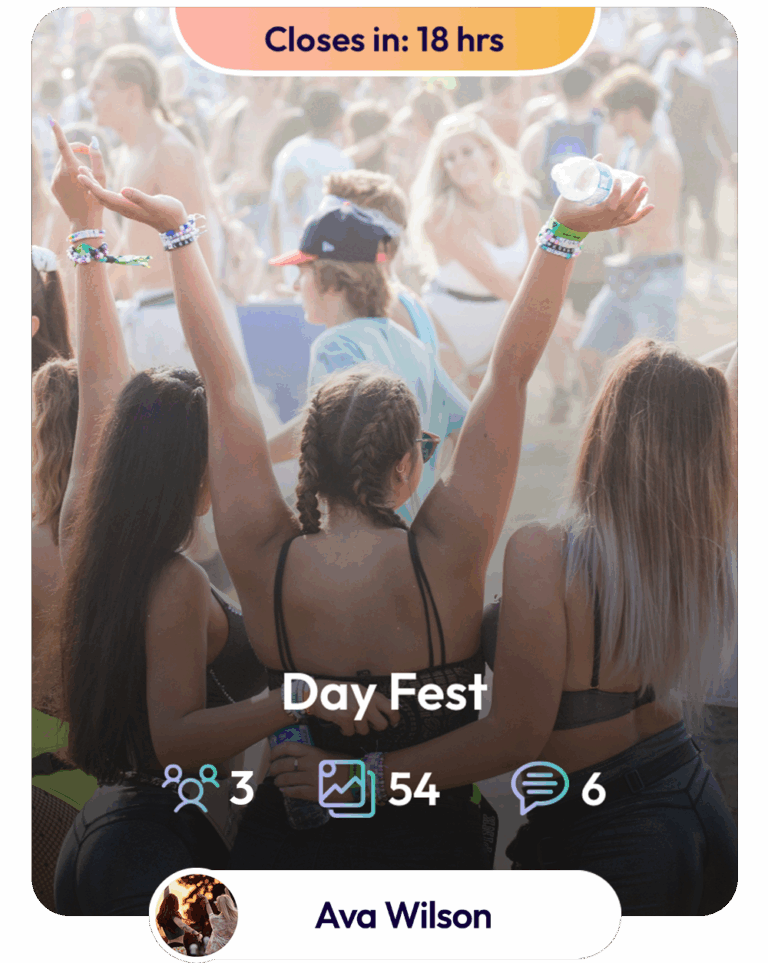
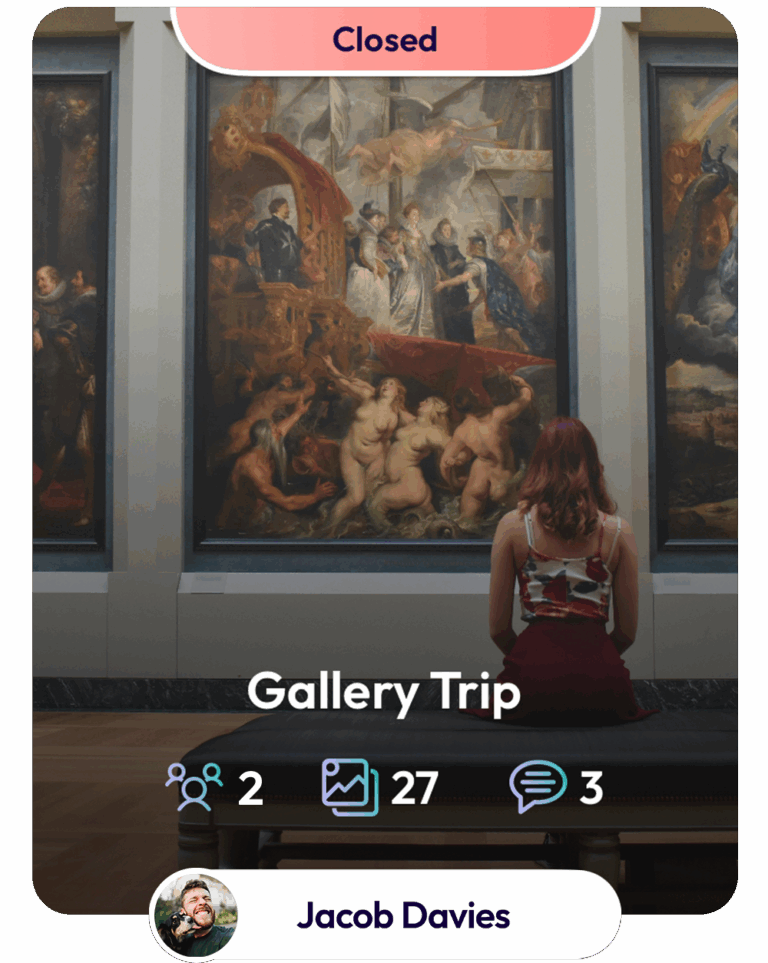
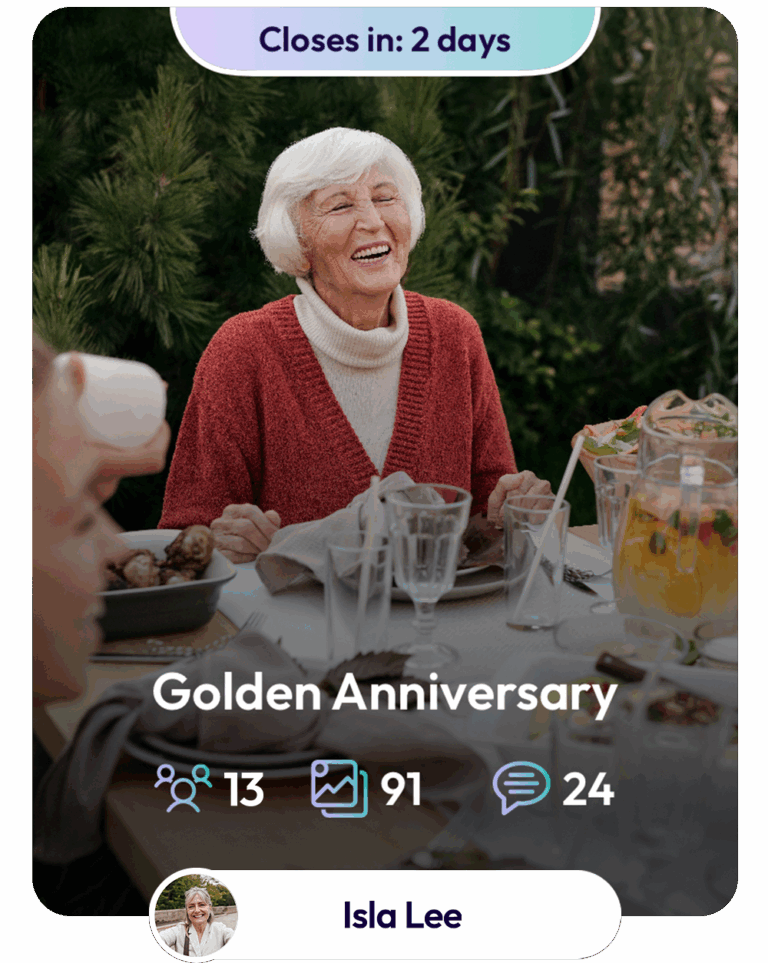
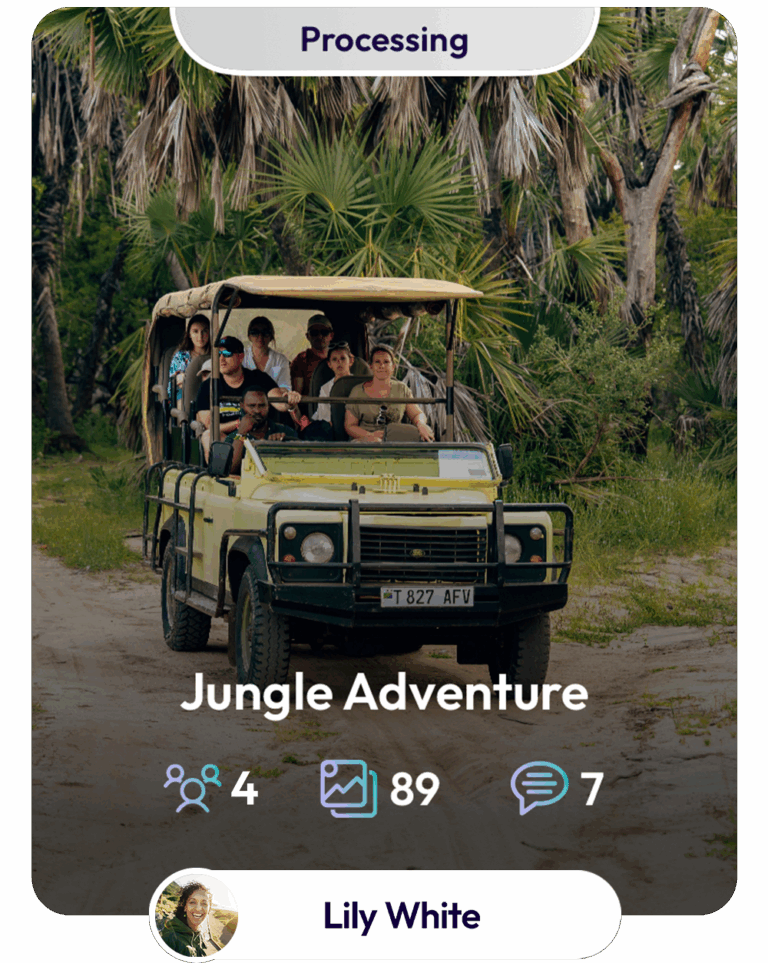
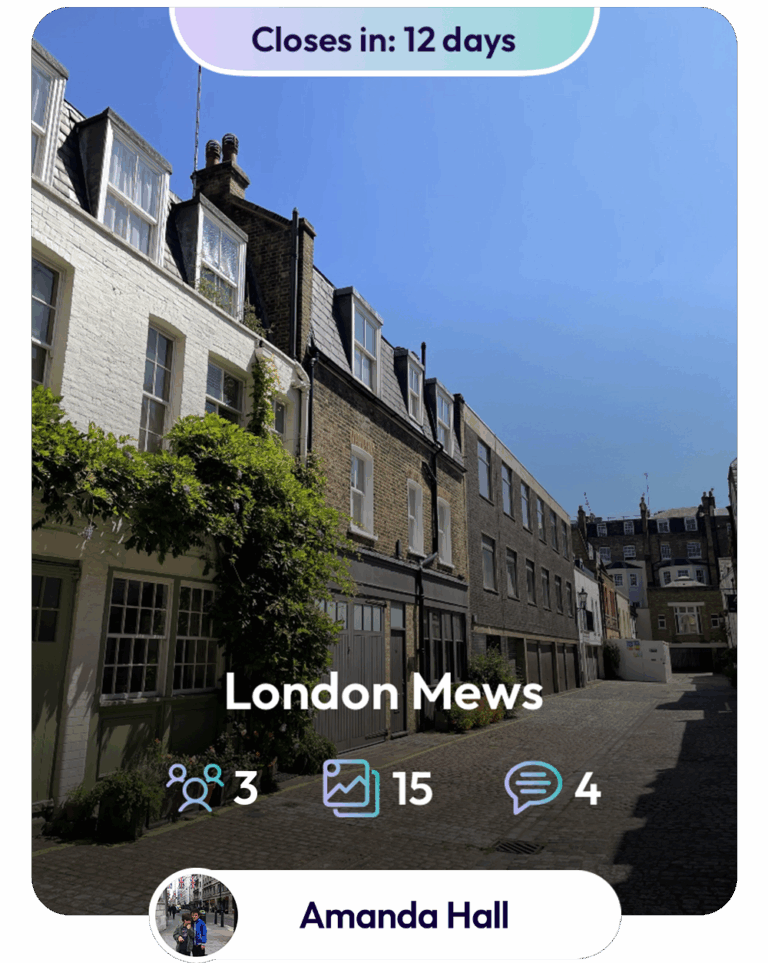
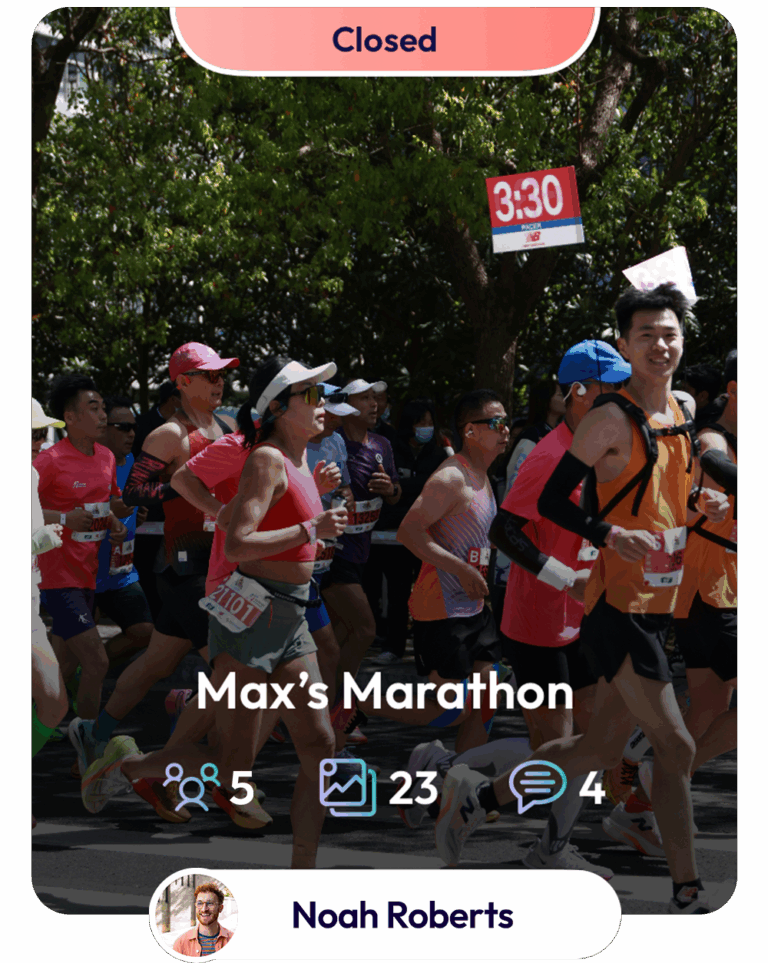
The Home Screen shows your recent Albums, followed by your WenWe’s, which are split into Active and Completed. You’ll return to the Home Screen whenever you open the app, and from here you can navigate to all other areas.
What’s in the Active Section?
- WenWe’s that are processing
- Live WenWe’s, you’ve created and haven’t closed yet
- Live WenWe’s that you’re contributing to
What’s in the Completed Section?
You’ll find your own completed WenWe’s, ones you’ve contributed to and Open WenWe’s.
What's an Open WenWe?
It’s a WenWe that your friends have designated as “Open”. You can’t contribute clips, but you can view them and leave messages.
Are all my WenWe’s and Albums on my Homepage?
No, the Homepage only lists the most recent. To see everything, tap the Library button on the Nav Bar.
What other features can I access from my Homepage?
Tap the icons for:
- Your Community
- Notifications
- Your Account
From the Nav Bar you can access:
- Invites – see your invitations to Albums, WenWe’s, and Friend Requests
- Create – tap to create a WenWe or Album
- Library – access all your WenWe’s in one searchable location
- PhotoLab – order Prints and LithoPanes from our shop.
Going live with my WenWe
How do I create a WenWe?
Tap the Create button on the Nav Bar and select WenWe on the Slider. Then enter a few details:
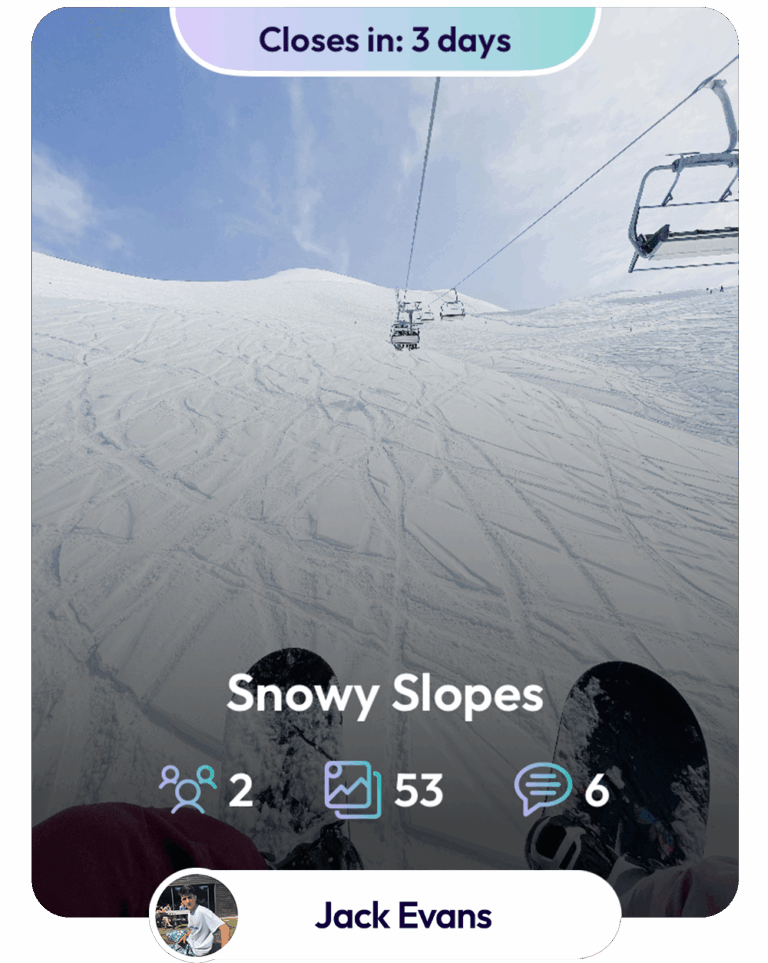
- Name – e.g. “Snowy Slopes
- Close Time and Date – the deadline for uploading clips, after which your WenWe will stream a preview
- Cover Photo – optional, but a great way to give your WenWe a strong visual identity
That’s it – tap “Let’s Go”. Your WenWe will Go Live and you’re ready to hit the slopes.
Now my WenWe’s live, what’s next?
The app is great for using with just your own clips, but it’s designed for collaboration, so you can start adding friends. You’ll be able to track who’s accepted your invitation by selecting “Contributors” on your WenWe and view all the clips they’ve contributed.
What are my privacy options?
You can make it “Open“, so all your Friends can see it, or keep it “Private” – our default setting – so it’s just for you and your contributors. We’d suggest deciding this early on, as some contributors may not want to appear in an Open WenWe, although they can opt out at any time.
How do I make changes to my WenWe’s set up?
You can change any details by visiting “Options” until your WenWe closes.
Can I select my Film Style & music before my WenWe closes?
Tap on “Video Styles”, where you can reorder clips and choose music and film styles. You’ll also be able to make changes later when you preview your WenWe before releasing it.
Can I Close my WenWe at any time?
Yes. At the bottom of the screen you’ll see the option to “Close Early”. Selecting it will end your WenWe and your preview will start streaming.
What’s the maximum length for a WenWe?
The maximum length is 20 minutes. The final length will depend on the film style you select and how many images and videos have been contributed. Your WenWe can last anywhere from a few seconds to 20 minutes – it’s entirely up to you.
If it’s over 20 minutes, we’ll cut it down by moving clips to the Boneyard. You can always use the Remix option to create another WenWe that includes the clips that were removed.
Going live with my Album
How do I create an Album?
Tap the Create button on the Nav Bar and select Album on the Slider. Then enter a few details:
- Name – e.g. “My Birthday”
- Cover Photo – optional, but your Album will look better with one
And that’s it – tap “Let’s Go”. Your Album will Go Live and you’re ready to blow out the candles.
Now I’m live, what’s next?
The app is great for using with just your own clips, but it’s designed for collaboration, so you can start adding friends. You’ll be able to track who’s accepted your invitation by selecting “Contributors” on your Album and view all the clips they’ve contributed.
What are my privacy options?
Albums are private and visible only to you and your contributors.
How do I make changes to my Album's set up?
You can change any details by visiting “Options”.
What’s the maximum length for a WenWe?
Albums can have as many images and videos as you like.
Invite friends to contribute clips
What’s the difference between a Friend and Participant?
A Friend is someone you have invited to be a friend and who appears on your Friend’s List.
A Participant is someone you have invited to contribute to a WenWe, but who you haven’t invited to be a friend.
It’s an important distinction, as if you designate your WenWe as “Open”, all your Friends will be able to view it and leave messages.
How do I invite Contributors to my WenWe or Album?
Access your WenWe by tapping it on the Homepage, then tap the + next to Contributors. You’ll have 5 options:
- Friend’s List – tap on a friend to invite them or select the option to invite all your friends
- Participant’s List – tap on a participant to invite them
- Add a Group – tap to add a group
- Share a Link – invite someone by email, WhatsApp or another messaging service
- Generate a QR Code – anyone with you can scan the popup code, or you can download and print it to use at a venue
When I share a link, will that person need to download the app?
Yes. If they don’t already have the app, they’ll need to download it. The link will take them to the app store and, once they’ve downloaded the app, they’ll need to return to the link and tap it again to join your WenWe or Album.
How will I know when a contributor has added their clips?
You’ll get a notification and the Contributors section will show how many clips each contributor has added.
How many people can I invite to a WenWe?
As many as you like!
Can people I’ve invited ask others to join?
Yes, you can switch this option on in the Contributors Section. Then anyone you’ve asked to contribute can invite additional Contributors themselves.
This can be especially helpful when creating a WenWe in someone’s memory, where you may not know all of their old friends and relatives
Joining a WenWe or Album
Do I have to download the app to contribute?
Yes.
Do I have to be invited to join?
Yes, you have to be invited by the Creator to make a contribution. You’ll receive a notification through the app or, if you’re not yet on the platform, a message by email or another messaging service inviting you to join.
You’ll need to download the app, sign up, return to the link and tap it again. You’ll then find your invitation waiting for you.
How do I join?
You’ll receive an invitation either in the app or via a link. You can Join or Pass. If you do neither, you can find your invite in the Invites Section and deal with it later.
You can also join by scanning a QR code on the Creator’s mobile.
If it’s an Open WenWe can I add clips?
No. You can view it and leave messages once it’s completed, but you can’t contribute unless you’ve been specifically invited.
How do I know what I should contribute?
If it’s a WenWe, you’ll be taken to your contribution page, which will include information and guidance from the WenWe’s Creator.
Can I leave a WenWe or Album if I no longer want to be part of it?
Yes. Select the “Leave” option in a WenWe or the “Remove Album” option in an Album.
Adding clips & messages
How do I upload images and videos?
You can upload from your photo library, take live images and videos directly into the app, or upload content from any of your past WenWe’s and Albums.
You can use most standard formats, including png, jpg, mov and mp4, from iPhone and Android devices.
How many images can I upload?
A Contributor can upload up to the number the Creator has specified for that WenWe. The Creator can upload as many as they like. Albums have no upload limits.
How long can my video clips be?
The Creator will have specified the length they want for video clips. Albums have no limits.
What happens if my clip is too long?
If your clip is over the specified length**, we’ll trim it for you. You can review it to check you’re happy with the result.
If you’d prefer to trim it yourself, both Android and iOS devices have their own editing tools.
Can I remove a clip I’ve already uploaded?
Yes, you can remove and add clips until the WenWe closes.
When can I leave messages?
You can leave and receive messages as soon as a WenWe or Album goes live. You can also leave messages on individual clips.
Things to do before your WenWe closes
Where can I see my Friends’ clips before my WenWe closes?
Select “Video Styles”. You can view all the clips that have been uploaded and see who’s contributed them. You can reorder clips or banish any you don’t like to the Boneyard. You can also view all these clips on the Photos & Videos Screen.
Can I select what film style and music my first preview will be in?
Yes, the “Video Styles” option gives you 12 different film style choices and a selection of hundreds of cleared music tracks. You can also upload your own music.
What happens if I don’t select a film style?
If you don’t make a choice, we’ll choose one for you and add a music track. You can change the style at any time during the preview process before you release it.
Can I view my WenWe in Portrait or Landscape?
You can view your WenWe in either Portrait or Landscape. We recommend that you choose the same format that the majority of your pictures were submitted in.
What happens when my WenWe closes?
You’ll be notified that your WenWe is being processed and is ready for preview. You can then decide whether to edit or release it.
How long does it take to stream my preview?
It can take as little as 10 seconds. If it’s a longer film, it could take a few minutes.
If your WenWe is mixing source video sound with a music track, that may take a little longer as we need to pre-mix the audio.
After your WenWe closes
My preview stream is in low resolution, will my final render be a better quality?
We stream your preview in low res to get it to you quickly. The final render will be top quality, so it’ll take a bit longer.
What options do I have after I’ve watched my preview?
You can either release it or edit it. You’ve also got the option to delete it, but remember that will be it, you’ll lose all you and your contributors clips permanently.
What order do you put my clips in?
We initially arrange your clips in the order that they were taken according to the clips “metadata”.
How do I reorder and remove clips?
Use the Shuffle or the By Date button, or you can rearrange them manually by selecting individual clips. Relegate clips you don’t want to include to the Boneyard. They’ll always be there if you want to put them back.
Can I add more clips when I’m editing my WenWe?
Yes, The Creator can add as many extra clips as they like.
Can a creator add over length clips?
The Creator can switch off automatic trimming and upload any length of video clip.
I don't want the end credits, can I get rid of them?
Toggle them On or Off, it’s up to you.
Choosing your Film Style
What are film styles?
We’ve created different film styles to play your clips with different moods, from slow and simple to quick and pacey.
What are my choices?
You’ve 12 film styles to choose from.
Carousel – a gently dissolving slide show / Flow – some nice wipes / Grand – funky cuts / Jitter – bouncy / Modern – pacey / Mid Cut – straight cuts with no fuss / Mid Moves – does what it says / Noir – Black & White / Quick Cut – simple & pacey / Retro – if you like the 70’s / Sepia – that old fashioned look / Slow Moves – gentle moves for a gentle cut.
Can I preview my WenWe in a particular film style?
Yes. Make a choice and preview it with your actual images. See if you’re happy with it, or try another – it’s your choice. You can preview it as many times as you like with as many styles as you like, before you finally release it.
The film styles play with a music track, how is that chosen?
We’ll select a suitable music track for you, but you can make your own choice from the hundreds available or upload your own.
Will different film styles give different length WenWe’s?
Yes, different styles display your images for different lengths of time. As an example, if you have 30 images in your WenWe and you selected Carousel, you’d get about a two minute film. Whereas if you had selected Quick Cut, you’d be at around 30 seconds.
Choosing your Music
Are music choices divided into categories?
You’ve got 6 mood categories:
Adventure / Calm / Energetic / Happy / Nostalgia / Sad /
And 10 music genres:
Classical / Country / Dance / Disco / HipHop / Indie / Pop / R&B / Reggae / Rock
Check out the Top 10, which we’ve selected for your particular Film Style.
How do I select music tracks?
Tap on a category and we’ll recommend ten tracks based on the film style you’ve selected. Tapping a track will preview it.
Can I see all the tracks?
Select “View All” and we’ll list them all alphabetically.
Can I add my own Music to a WenWe?
Yes, select the Upload button. Don’t forget, you must have specific clearance for that music track or you’ll be infringing copyright.
I’ve got audio on my video clips, how do I make sure that it’ll be on my WenWe?
Sound from source videos is disabled by default. You can switch it on in the Film & Music editing section. If you select a music track and have source audio sound switched on, we’ll mix the two together – great for birthday greetings.
No Music Option
You also have the option to select the “no music track” option in Film & Music Settings for that WenWe. If you do that, you’ll only get sound from your source video.
Releasing your WenWe
How many times can I preview my WenWe before releasing it?
As many as you like. Take the time to get it right before you release it.
What happens when I decide to Release my WenWe?
We’ll render a high resolution version to reveal to everyone.
Why does the final render take longer to process than the preview?
It’s processed to a higher resolution and it isn’t streamed. It’s only ready to view when the render has completed.
Can I re-edit my WenWe after it’s released?
Yes, select “ReMix” and you can re-edit, change Film Styles, add new clips and change music tracks on any of your stored WenWe’s as many times as you like to create a new WenWe. We’ll keep all your Remixes together with your original WenWe.
Will all my photos still be available if I re-edit?
Yes, we keep all your photos.
Downloading, Deleting & Sharing
Can I download a WenWe?
Yes.
Can I share my WenWe with someone not on the app?
Yes. Use the “Share” option on a completed WenWe and send a link to anyone you like.
Can I share or Download individual clips on my WenWe’s or Albums?
Yes you can. Tap on the clip and then tap on the dots in the top right hand corner.
Who can delete a WenWe or Album?
Only the Creator can. Deleting will also delete all the associated clips for the Creator & Contributors.
Do you store all the images and videos for each WenWe as well as the WenWe itself?
Yes, we do, so you can re-edit any of your WenWe’s, using Remix.
What your community can view
What’s the difference between a “Private” and an “Open” WenWe?
The default setting is “Private – only visible to its contributors. You can set a WenWe as “Open”, in the Privacy section. An Open WenWe can be viewed by everyone on your Friends List, where they can also leave messages – a great way for your friends to keep in touch.
Can I change a Private WenWe to Open after creating it?
Yes, you can, up until it closes.
Can people I’ve invited ask other’s to join that WenWe?
You can switch this option on in the Contributor Section. Then anyone you’ve asked to contribute can themselves invite Contributors.
Can anyone on the platform view my WenWe?
No, WenWe is just for you and your community. There’s no public area.
Friends
How do I ask a Friend to join the platform?
Use the Add Friend option in your Friend’s Section. That will generate a link that you can send to them by email or text. You can also visit your Participant’s section and ask a participant to become a friend.
Can my Friends view all my WenWe’s?
No. They can only view WenWe’s that you have designated “Open”.
Can I see my Friends WenWe’s?
Yes, if they’re designated as “Open” or you’ve participated in them. Click on that friend and it will list what you can see.
How do I remove a Friend from my list?
If you click on a friend you’ll see there’s an option to remove them. We don’t notify them, it will just happen.
Groups
How do I create a group?
Select Groups and tap + where you can give your group a name.
How do I add a Friend to my Group?
Tap on the option to add a friend.
How do I add a participant to my Group?
You’ll need to upgrade them to being a Friend.
Can I add someone who isn’t a Friend or Participant?
No, you’ll have to add them to your Friend’s List first.
Participants
Who is on my Participant’s list?
A Participant is someone who has been invited to contribute to a WenWe or Album of yours, but who you haven’t added to your Friend’s List.
Can I view a WenWe that a Participant has created?
Yes, if you had been invited to contribute to it. Tap on that Participant and it will list what you can see.
Can I invite a Participant to become a Friend?
Click on the Participant and you’ll see the option to invite them to be a Friend.
How do I remove a Participant from my Participant’s List.
If you click on a Participant you’ll see there’s an option to remove them.
Your Profile
Do I need to add a photo of myself?
No, you don’t need to, but nice if you did. We’ve got a neat tool to crop and resize.
What’s my display name?
It’s the name that will appear on your WenWe’s, Albums and Friend’s Lists. You can change it whenever you like.
Do I need to give my date of birth?
No, but it would be great if you did as we like to know whose using the app. Remember, we don’t release any of your personal information.
How can I close my account?
There’s an option at the bottom of your account screen. If you select this your stored content will no longer be accessible. Clips that you have contributed to other people’s WenWe’s will remain on the platform.
How do I know how much storage I’ve got left?
At the top of your account you’ll find your storage barometer.
What happens if I run out of storage?
You can still complete any Active WenWe’s or Albums. However you won’t be able to create new ones. You’ll either need to delete old WenWe’s or Albums to free up space or upgrade for more storage.
Payments and Subscriptions
Is WenWe free to use?
Yes, WenWe Classic is free to use together with 5GB of free storage. The barometer in your account section shows you how much you’ve used.
What do I get if I become a Member?
The Membership subscription is £1.99 a month and gives you:
- 25GB of storage
- 10% off all PhotoLab Purchases
- 50% off your next PhotoLab order
- One free session at our PhotoBooth store
How are the benefits of being a Plus Member?
The subscription is £3.99 a month and gives you 100GB of storage. You’ll continue to get 10% off all PhotoLab Purchases and we’ll give you another 50% off your next order and another free PhotoBooth session.
Can I get a free Membership Upgrade?
Visit the community page and invite three new users to WenWe and we’ll give you free Membership for three months.
Notifications
Can I choose my push notifications?
Yes, your notifications are customisable.
How many choices are there?
There are 6 categories that you can turn on or off:
- Invites/Requests
- Media added
- Messages
- My WenWe’s status
- Other WenWe’s status
- Storage full
Will I get sent email notifications?
All the notifications are “in app”, except when your storage is full. We may send you news of updates & changes to WenWe by email.
What settings do you recommend?
We suggest you keep them all on to start with and see how you go.
Help, Support & Feedback
Where can I get help & support?
In your account tap Help & Support.
You’ll find some options:
- FAQs – divided into different topics.
- Contact – If you get in touch, we’ll get back to you and sort it out.
- A link to our website.
- A selection of Guides to give you an overview of WenWe
How long do you take to reply if I contact you?
We operate in business hours – 9 to 5 – that’s because we don’t outsource to third parties, we do it ourselves. So sometimes you may have to wait a bit, but we’ll always get back to you.
What sort of feedback can I give?
Anything you like. In the feedback section you can suggest improvements, tell us what aspects of WenWe you like or let us know if there’s something that you think doesn’t work. We welcome your feedback.
Where can I get a quick overview of WenWe?
Check out the Guides in the help section.
T's & C's & Privacy Policy
I never read Terms & Conditions, why should I read yours?
We know the feeling! We’ve tried to make them user friendly.
Can you give me some of the important bits?
Here are some important points:
- Music – WenWe provides pre-cleared tracks – if you include a video with copyrighted music or upload your own music, you must have permission. If you don’t have permission, it’s illegal and your responsibility.
- Content – Please don’t post illegal, misleading, threatening, discriminatory, pornographic, or hateful content. Just be courteous.
- Reporting inappropriate content – have a word with the Creator of that WenWe. If that doesn’t work or you don’t want to do that, contact us and we’ll look into it.
- Contributing – when you contribute to a WenWe or an Album you are allowing your clips to be used in that WenWe. Your clips can be saved and used by other users just as you can save their clips. There’s no public section in WenWe, but your clips and videos may be posted on other media over which we have no control.
- LithoPanes – if you order a LithoPane from us, its printing process may be live streamed and shown at the Store or posted on YouTube or other sites. Such livestreams are intended to show the printing process and not to publicly identify customers personally.
I never read Privacy Statements either!
We understand! We’ll keep your data safe.
Can you give me some of the important bits?
Yes we can:
- We do not sell your data to third parties
- We don’t use algorithms to target you with advertising
- We keep your personal data safe, confidential and secure
We do use it for:
- Getting feedback
- Making improvements
- Adding features
In App
What’s PhotoLab
PhotoLab is our in app store where you can turn your images into:
- 6×4 Prints
- Photobooth style prints
- Photo Magnets
- LithoPanes
What’s a LithoPane?
A LithoPane is a 3D representation of an image made on our 3D printers in house. They come with a stand and a mini torch to light them up.
What’s a PhotoBooth Style Print?
PhotoBooth style prints come in quads or strips. You can customise them with our selection of borders.
Can I turn any print into a magnet?
Yes. We can add a magnetic back to any print.
Who prints your photos and makes your LithoPanes?
We do it all in house. Each order is individually printed and packed by us.
Can I get my order delivered next day?
We have to get your order to our dispatcher by noon for you to get it next day. If you order by 10, we’ll get them to you.
What are my delivery options?
Next day, Standard or you can collect them from our store. We’ll let you know when they’re ready to collect.
Can I get a discount?
We’re not the cheapest, but then we believe our prints offer exceptional quality. If you become a Member, you’ll get 10% off all your purchases.
Our Store
Where is the WenWe store?
We’re opening on the 25th July at 56 Dean Street, Soho, London W1D 6AL.
Can I have my picture taken at the Store?
Step in and try out our distinctive PhotoBooths. You’ll get a choice of quads or strips to take away with you and we’ll even upload them to your WenWe account.
Do I have to get the app to use the PhotoBooth?
No, but it’s free and we’ll upload your PhotoBooth pictures to your account.
Can I get a LithoPane printed at the Store?
Yes, we aim to have it printed in half an hour..
Can I pick up orders from the Store?
Yes, order on the app, save the delivery cost and pick them up at our store. We’ll let you know when they’re ready to collect.
What are your opening hours?
We’re open every day from 11am to 11pm.
What’s special about your PhotoBooths?
They’ve been designed in house and built by us. They use our own software and we’ve used top quality cameras and the best dye sublimation printers.
Archiving
Sort your old photos into Albums and WenWe’s and keep your memories catalogued and safe.
Growing Up
Capture your child’s milestones—use Remix to add new images as they grow and create a WenWe of their life.
Joining with a QR code
Print your WenWe or Album’s QR code to display at a venue or include it in invitations, so guests can easily join in.
Invite even more Contributors
In the Contributors Section for any WenWe or Album, enable the option for contributors to invite other contributors and see your project grow.
Portrait vs. Landscape
Mixing portrait and landscape clips? Chose the format that matches the majority of your clips.
Send a Birthday Card
Create a WenWe with friends and family, add a caption and share it with the Birthday boy or girl. Gift them a LithoPane and really make their day.
Requesting Clips
Not getting the shots you hoped for? Post a message explaining what you’d like.
Too Long?
WenWe’s have a 20-minute limit. If yours is longer, use Remix to split it into two or three…
Free Membership
Invite three friends to download the app and get free Membership for three months.
Add a Caption
Tap a clip and add a Caption.
Cover Image
Tap the cover image to quickly update or change it.
See your friend's Shared Albums and WenWe's
Tap on a Friend in the community section and see the images you share.
Convert your Album into a WenWe
Create a new WenWe and add all the images from your Album using “Select all” in the library section.
Think you can do better than the Creator?
Make your own version. Create a new WenWe and select all the WenWe’s images using “Select all” in the library section and have a go.
Add a Voice Over to your WenWe
We’ll be adding a Voice Over feature, but in the meantime here’s a hack.
Share a link to your rendered WenWe, so you can play it on another device. While your watching it, record the voice over on your phone, using Voice Memos.
Save the recording to Files, go to ‘Your Music’ in your account settings and upload the Voice Over from ‘Your Files’.
Remix your WenWe and change the music by tapping ‘Upload’ to add the Voice Over.
Save the Postage
Pick up your order from our Store and save the postage – we’d love to meet you!